Shopify Custom Theme Development: Complete Guide 2026 - Build, Create & Make Themes
Complete guide to Shopify custom theme development: how to build, create, and make Shopify themes from scratch, template development process, theme dev tools, Liquid coding, and step-by-step instructions.
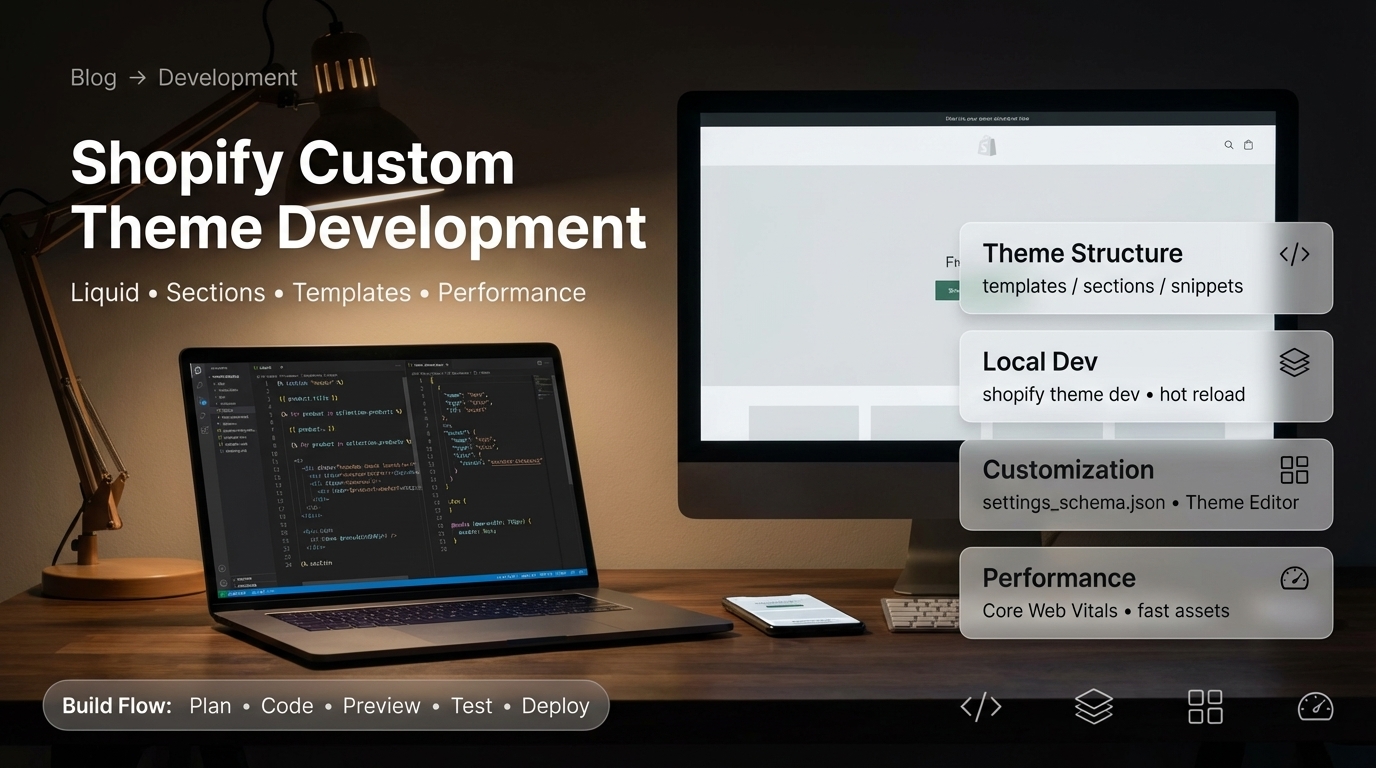
What is Shopify Custom Theme Development? (Quick Answer)
Shopify custom theme development is the process of creating unique, tailor-made themes for Shopify stores from scratch or heavily customizing existing themes. It involves designing and coding themes using Liquid (Shopify’s templating language), HTML, CSS, and JavaScript.
To create a Shopify theme, build a Shopify theme, or make a Shopify theme, you use Shopify CLI and develop locally with shopify theme dev for instant preview. Shopify template development focuses on creating Liquid template files that define how pages are displayed.
Looking for professional Shopify development services? We’re Shopify theme development experts. Check out our Shopify development services for custom theme solutions.
Fuentes y Recursos Externos
- Shopify Developer Documentation - Documentación oficial de Shopify para desarrolladores
- Shopify Partners - Programa oficial de partners de Shopify
Understanding Shopify Theme Development
What Custom Theme Development Includes
Custom Theme Development Components
- Unique design and layout (brand-specific)
- Liquid template files for all page types
- Custom sections for homepage and product pages
- Responsive design (mobile-first approach)
- Custom JavaScript functionality
- Theme settings for merchant customization
- Optimized performance (fast load times)
- SEO optimization
- Accessibility features
- Integration with Shopify apps
Custom vs Template Themes
| Aspect | Template Theme | Custom Theme |
|---|---|---|
| Development Approach | Customize existing theme | Build from scratch |
| Uniqueness | Limited by template constraints | Complete uniqueness |
| Cost | $2K-$8K | $15K-$50K+ |
| Timeline | 2-4 weeks | 8-16 weeks |
| Flexibility | Limited customization | Complete control |
| Best For | Quick setup, budget-conscious | Unique branding, specific needs |
How to Create a Shopify Theme: Step-by-Step
Prerequisites
Before you create a Shopify theme, you need:
Required Setup
- [Shopify Partner account](https://partners.shopify.com) - Free to create
- [Shopify CLI](https://shopify.dev/docs/apps/tools/cli) - Install globally
- Node.js v18 or higher
- Code editor (VS Code recommended with Liquid extension)
- Development store (free with Partner account)
- Knowledge of HTML, CSS, JavaScript
- Understanding of Liquid templating
Step-by-Step: Create Shopify Theme
-
Create Partner Account
Sign up for a free [Shopify Partner account](https://partners.shopify.com). This gives you access to unlimited development stores, Shopify CLI, and all development resources. Verify your email to activate the account.
-
Install Shopify CLI
Install [Shopify CLI](https://shopify.dev/docs/apps/tools/cli) globally: `npm install -g @shopify/cli @shopify/theme`. Verify installation with `shopify version`. The CLI provides all commands needed for theme development.
-
Authenticate with Partner Account
Run `shopify auth login` in terminal. This opens your browser to authenticate. The CLI stores credentials for future use. You only need to authenticate once.
-
Create New Theme
Run `shopify theme init` in your terminal. Choose: Theme name, Starter theme (Dawn, Debut, or blank), or start from scratch. This creates the theme folder structure with all necessary files.
-
Start Local Development
Navigate to your theme folder and run `shopify theme dev`. This starts the local development server, connects to your development store, and enables hot reload. Your store opens automatically in browser with your theme.
-
Customize Theme Files
Edit theme files in your code editor: Templates (templates/), Sections (sections/), Snippets (snippets/), Assets (CSS, JS in assets/), Config (settings_schema.json). Changes sync automatically to your dev store.
-
Test Your Theme
Test all page types: Product pages, Collection pages, Cart page, Homepage, Other templates. Test on mobile devices, check responsive design, verify all functionality works correctly.
-
Push to Store
When ready, push to store: Use `shopify theme push` to upload theme, Or use `shopify theme push --unpublished` for draft, Review in store admin, Publish when approved.
How to Build a Shopify Theme
Building Process Overview
To build a Shopify theme, follow this process:
| Phase | Activities | Files Involved |
|---|---|---|
| Structure | Create folders, organize files | templates/, sections/, snippets/, assets/ |
| Templates | Create Liquid templates for pages | product.liquid, collection.liquid, etc. |
| Sections | Build reusable sections | header.liquid, footer.liquid, featured-product.liquid |
| Styling | Write CSS for design | theme.css, custom styles |
| Functionality | Add JavaScript for interactivity | theme.js, custom scripts |
| Settings | Configure theme customization | config/settings_schema.json |
| Testing | Test all features and pages | Development store |
| Deployment | Push to production | shopify theme push |
Theme File Structure
A Shopify theme has this structure:
your-theme/
├── assets/          # CSS, JavaScript, images
│   ├── theme.css
│   └── theme.js
├── config/          # Theme settings
│   └── settings_schema.json
├── layout/          # Layout templates
│   └── theme.liquid
├── locales/         # Translation files
├── sections/        # Reusable sections
│   ├── header.liquid
│   └── footer.liquid
├── snippets/        # Reusable code snippets
└── templates/       # Page templates
    ├── index.liquid (homepage)
    ├── product.liquid
    └── collection.liquid
Shopify Theme Dev: Local Development
Using Shopify Theme Dev
Shopify theme dev (shopify theme dev) is the command for local theme development:
What shopify theme dev Does
- Starts local development server
- Connects to your Shopify store
- Enables hot reload (instant preview of changes)
- Opens store in browser automatically
- Syncs local files with store in real-time
- Provides local preview URL
- Allows offline development (with sync when online)
Development Workflow
-
Start Dev Server
Run `shopify theme dev` in your theme directory. The CLI asks which store to use (select your development store). The server starts and your store opens in browser.
-
Edit Files Locally
Edit theme files in your code editor (VS Code, etc.). Make changes to Liquid templates, CSS, or JavaScript. Save files automatically.
-
See Changes Instantly
Changes sync automatically to your dev store. Browser refreshes automatically (hot reload). See updates immediately without manual upload. Much faster than theme editor.
-
Test and Iterate
Test changes in browser, make adjustments, iterate quickly. Hot reload makes development very fast. Fix issues immediately.
-
Push When Ready
When theme is complete, use `shopify theme push` to upload to store. Or push as draft first with `--unpublished` flag to review before publishing.
Shopify Template Development
Understanding Templates
Shopify template development focuses on creating Liquid template files that define page layouts:
Template Types
- index.liquid - Homepage template
- product.liquid - Product page template
- collection.liquid - Collection page template
- cart.liquid - Shopping cart template
- page.liquid - Regular page template
- blog.liquid - Blog listing template
- article.liquid - Blog post template
- search.liquid - Search results template
Template Development Best Practices
Template Best Practices
- Use Liquid tags and filters for dynamic content
- Include sections for customizable areas
- Use snippets for reusable code
- Follow responsive design principles
- Optimize for performance (minimize Liquid logic)
- Test templates on different devices
- Use semantic HTML structure
- Ensure accessibility (ARIA labels, proper headings)
How to Make a Shopify Theme
Making Your First Theme
-
Plan Your Theme
Design your theme: Create wireframes, Define page layouts, Plan sections needed, Decide on design style, Identify features required. Good planning saves development time.
-
Set Up Development Environment
Install Shopify CLI, Create Partner account, Set up development store, Install code editor with Liquid extension, Configure Git for version control.
-
Create Theme Structure
Run `shopify theme init` or create manually: Create folders (templates, sections, snippets, assets, config, locales), Set up layout/theme.liquid, Create base template files.
-
Build Layout
Create theme.liquid in layout/ folder: Add HTML structure, Include header and footer sections, Add CSS and JavaScript references, Set up meta tags and SEO structure.
-
Create Templates
Build Liquid templates: Homepage (index.liquid), Product pages (product.liquid), Collection pages (collection.liquid), Cart (cart.liquid), Other page types needed.
-
Build Sections
Create reusable sections: Header section, Footer section, Product sections, Homepage sections (hero, featured products, etc.), Make sections customizable with schema.
-
Style with CSS
Write CSS in assets/ folder: Create responsive styles, Use mobile-first approach, Style all page types, Ensure cross-browser compatibility, Optimize for performance.
-
Add JavaScript
Add interactivity: Write JavaScript in assets/, Handle dynamic features, Add form validations, Implement AJAX functionality, Ensure smooth user experience.
-
Configure Settings
Set up theme settings (config/settings_schema.json): Add color options, Font choices, Layout options, Feature toggles, Allow merchants to customize without code.
-
Test and Deploy
Test thoroughly: Test all pages, Test on mobile devices, Check functionality, Verify performance, Fix any issues, Push to store when ready.
Liquid Templating Language
Understanding Liquid
Liquid is Shopify’s templating language used in all themes:
Liquid Basics
- Objects - Access data ({{ product.title }})
- Tags - Control flow ({% if %}, {% for %})
- Filters - Modify output ({{ price | money }})
- Variables - Store values
- Includes - Reuse snippets
- Sections - Modular components
Common Liquid Patterns
Accessing product data:
{{ product.title }}
{{ product.price | money }}
{{ product.description }}
Looping through collections:
{% for product in collection.products %}
  {{ product.title }}
{% endfor %}
Conditional logic:
{% if product.available %}
  Add to Cart
{% else %}
  Sold Out
{% endif %}
Custom Theme Development Process
Professional Development Workflow
Summary: Custom Theme Development Process
| Phase | Activities | Timeline | Deliverables |
|---|---|---|---|
| Planning | Design, wireframes, features | 1-2 weeks | Design mockups, specifications |
| Development | Code templates, sections, styling | 6-10 weeks | Complete theme files |
| Testing | QA, device testing, bug fixes | 1-2 weeks | Tested, bug-free theme |
| Deployment | Push to store, final review | 1 week | Live theme |
| Total | Complete custom theme | 8-14 weeks | Production-ready theme |
Pro tip: Start with a starter theme (Dawn, Debut) if you're new to Liquid. It's faster and teaches you best practices. Custom development from scratch takes longer but gives complete control.
Skills Required for Theme Development
Essential Skills
| Skill | Importance | Used For |
|---|---|---|
| Liquid | Critical | All template development |
| HTML | Critical | Page structure |
| CSS | Critical | Styling and responsive design |
| JavaScript | High | Interactivity and features |
| Responsive Design | High | Mobile optimization |
| Shopify Architecture | High | Understanding theme structure |
| Performance | Medium | Optimization |
| SEO | Medium | Search engine optimization |
Learning Resources
Learning Resources
- [Shopify.dev Theme Development](https://shopify.dev/docs/themes) - Official documentation
- [Liquid Documentation](https://shopify.dev/docs/api/liquid) - Liquid reference
- [Shopify CLI Documentation](https://shopify.dev/docs/apps/tools/cli) - Development tools
- Starter themes (Dawn, Debut) - Study examples
- [Shopify Community](https://community.shopify.com) - Developer forums
- YouTube tutorials and courses
- Practice with development stores
Pricing: Custom Theme Development Cost
Development Costs
| Theme Type | Cost Range | Timeline | Complexity |
|---|---|---|---|
| Template Customization | $2K-$8K | 2-4 weeks | Low |
| Custom Theme (Simple) | $15K-$30K | 8-12 weeks | Medium |
| Custom Theme (Complex) | $30K-$60K+ | 12-20 weeks | High |
| Enterprise Custom | $60K-$150K+ | 20-32 weeks | Very High |
Factors Affecting Cost
Cost Factors
- Design complexity and uniqueness
- Number of custom sections and templates
- Custom functionality and features
- Responsive design requirements
- Performance optimization needs
- Integration requirements
- Timeline and urgency
- Developer experience and location
Common Development Challenges
Challenges and Solutions
| Challenge | Solution | Prevention |
|---|---|---|
| Liquid syntax errors | Use Liquid linter, validate frequently | Learn Liquid basics first |
| Performance issues | Optimize images, minimize Liquid logic | Test performance early |
| Responsive design | Mobile-first approach, test devices | Plan responsive from start |
| Browser compatibility | Test multiple browsers, use prefixes | Follow web standards |
| Theme editor compatibility | Test all settings, provide defaults | Use schema properly |
Best Practices
Development Best Practices
Theme Development Best Practices
- Use Shopify CLI for local development (shopify theme dev)
- Start with mobile-first responsive design
- Follow Shopify's theme development guidelines
- Use semantic HTML structure
- Optimize for performance (fast load times)
- Test on multiple devices and browsers
- Use version control (Git) for all code
- Document your code and customizations
- Follow accessibility best practices
- Test theme settings in theme editor
Performance Optimization
Performance Tips
- Optimize images (WebP format, lazy loading)
- Minimize Liquid logic in loops
- Use CSS efficiently (avoid deep nesting)
- Minify CSS and JavaScript for production
- Limit number of sections on homepage
- Use CDN for assets
- Optimize font loading
FAQ
Frequently asked questions
What is Shopify custom theme development?
Shopify custom theme development is the process of creating custom, unique themes for Shopify stores from scratch or heavily customizing existing themes. It involves designing and coding themes using Liquid (Shopify's templating language), HTML, CSS, and JavaScript to create unique storefronts. Custom theme development allows complete control over design, layout, and functionality. Developers use Shopify CLI for local development, customize Liquid templates, create custom sections, and build unique features. Custom themes are tailored specifically for a brand's needs, unlike template themes which are more generic. Development typically takes 8-16 weeks and costs $15,000-$50,000+ depending on complexity.
How do I create a Shopify theme?
To create a Shopify theme: 1) Create a Shopify Partner account (free at partners.shopify.com), 2) Install Shopify CLI on your machine, 3) Run `shopify theme init` to create a new theme project, 4) Choose a starter theme or start from scratch, 5) Use `shopify theme dev` to start local development server, 6) Customize theme files (Liquid templates, CSS, JavaScript), 7) Test in development store, 8) Push to store using `shopify theme push`. The Shopify CLI provides templates and tools to get started. You'll work with Liquid templates in the templates/, sections/, snippets/, and assets/ folders. Local development with hot reload makes iteration fast.
How do I build a Shopify theme?
To build a Shopify theme: 1) Set up development environment (Shopify CLI, Node.js), 2) Create theme structure (templates, sections, snippets, assets), 3) Code Liquid templates for pages (product, collection, homepage), 4) Style with CSS in assets folder, 5) Add JavaScript for interactivity, 6) Create custom sections for homepage and product pages, 7) Use Shopify theme settings for customization options, 8) Test locally with `shopify theme dev`, 9) Test in development store, 10) Push to production when ready. Building a theme requires knowledge of Liquid templating, HTML/CSS, and JavaScript. Shopify provides documentation and starter themes to help.
What is Shopify theme dev?
Shopify theme dev is the command `shopify theme dev` used in Shopify CLI for local theme development. When you run this command, it: Starts a local development server, Connects to your Shopify store, Enables hot reload (changes sync automatically), Opens your store in browser, Allows you to edit theme files locally and see changes instantly. This workflow is much faster than editing directly in the theme editor. You develop locally, test changes immediately, and push to store when ready. Shopify theme dev requires Shopify CLI installed and a Partner account for authentication.
How do I make a Shopify theme?
To make a Shopify theme: Start with planning (design, features, pages needed), Set up development environment (Shopify CLI, Partner account), Create theme structure (folders: templates, sections, snippets, assets, config, locales), Code Liquid templates for each page type (product, collection, cart, etc.), Create sections for customizable homepage areas, Style with CSS (responsive, mobile-first), Add JavaScript for interactivity and dynamic features, Configure theme settings (config/settings_schema.json), Test thoroughly in development store, Push to production. Making a custom theme requires Liquid, HTML, CSS, and JavaScript knowledge. Start with a starter theme if you're new to Liquid.
What is Shopify template development?
Shopify template development refers to creating Liquid template files (templates/) that define how different page types (product pages, collection pages, cart, checkout, etc.) are displayed. Templates use Liquid syntax to output dynamic content from Shopify. Template development includes: Creating template files for each page type, Using Liquid tags and filters for dynamic content, Structuring HTML with Liquid logic, Adding sections to templates for customization, Ensuring responsive design, and Testing templates on different devices. Templates work together with sections, snippets, and assets to create the complete theme. Template development is a core part of Shopify theme development.
What skills do I need for Shopify theme development?
For Shopify theme development, you need: Liquid templating language (required for all themes), HTML for structure, CSS for styling and responsive design, JavaScript for interactivity, Understanding of Shopify's theme architecture (templates, sections, snippets), Knowledge of Shopify objects and filters (products, collections, cart), Responsive design principles, Performance optimization, Shopify CLI usage for local development. Optional but helpful: Git for version control, Design skills, Understanding of e-commerce UX, API knowledge for custom features. You can learn Liquid through Shopify's documentation and practice with starter themes.
Conclusion
Shopify custom theme development allows you to create unique, branded storefronts tailored to your business needs. Whether you want to create a Shopify theme, build a Shopify theme, make a Shopify theme, or engage in Shopify template development, the process involves Liquid templating, HTML/CSS, and JavaScript.
Key takeaways:
- Shopify custom theme development uses Liquid, HTML, CSS, and JavaScript
- Create Shopify themes using Shopify CLI with
shopify theme init - Shopify theme dev (
shopify theme dev) enables local development with hot reload - Build Shopify themes following Shopify’s theme architecture (templates, sections, snippets)
- Shopify template development focuses on Liquid template files for page types
- Development process takes 8-16 weeks for custom themes
- Costs range from $15K-$60K+ depending on complexity
- Local development with Shopify CLI is much faster than theme editor
Our recommendation: Start by creating a free Shopify Partner account and installing Shopify CLI. Use shopify theme init to create your first theme and shopify theme dev for local development. Learn Liquid through Shopify.dev documentation and practice with starter themes. Start with a simple theme and gradually add complexity. Use version control and test thoroughly before deployment.
Ready to create your custom Shopify theme? Follow the steps above, use Shopify’s development tools, and start building unique storefronts.